Convert Portrait Images to Landscape Online
Free tool to change photo orientation — crop, blur-fill, or smart resize to any aspect ratio.
How to Convert Portrait to Landscape in 3 Steps
- 1Upload your portrait image
Drag and drop or click to upload. Supports JPG, PNG, WebP, GIF, SVG, and HEIC formats.
- 2Choose your conversion method
Crop for a quick trim, Blur-Fill to keep the full image with blurred background sides, or Smart Resize for platform-specific dimensions.
- 3Pick an aspect ratio & download
Select 16:9, 4:3, 5:2 panoramic, or enter custom dimensions. Click convert and download your landscape image instantly.
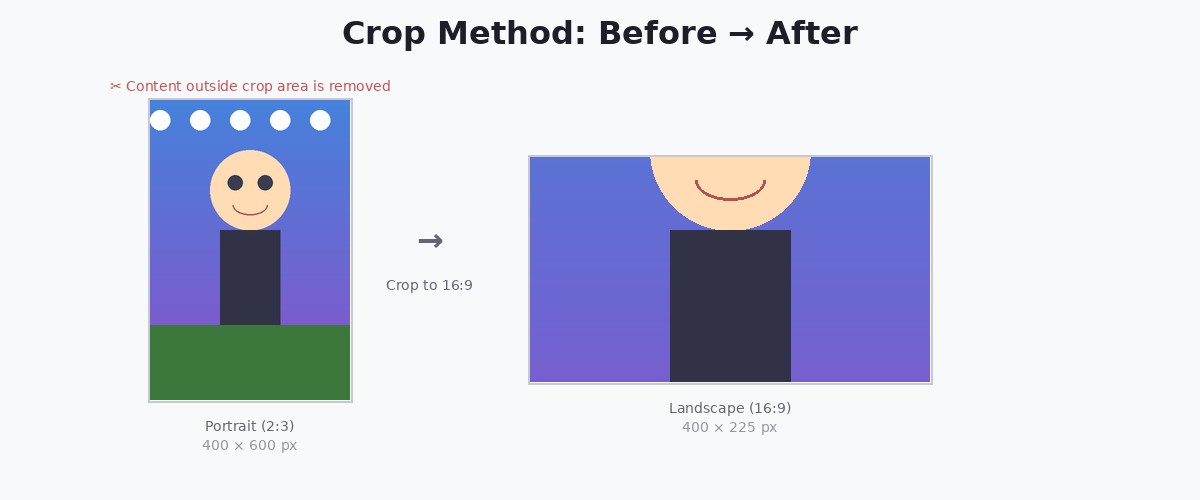
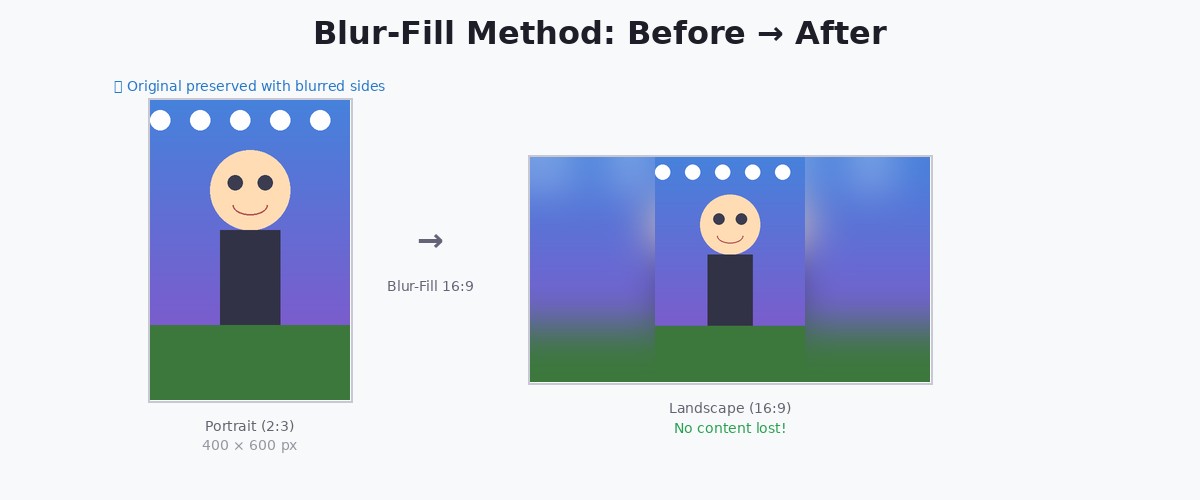
See the Difference: Crop vs Blur-Fill
Compare both methods side by side to pick the best one for your photo.
Three Ways to Convert Your Images
✂️ Crop
Trim your portrait to fit landscape dimensions. Best when you can afford to lose some top or bottom content and want a clean, tight horizontal composition.
🌫️ Blur-Fill
Keep your entire portrait image centered with a beautiful blurred background extending to landscape dimensions. Perfect for social media posts where you don't want to lose any part of your photo.
📐 Smart Resize
Automatically resize your image to exact platform dimensions. Generate multiple sizes at once for YouTube thumbnails, Facebook covers, Twitter headers, and more.
Common Questions About Portrait to Landscape Conversion
- What's the best method to convert portrait to landscape without losing quality?
- Blur-fill preserves your entire original image at full quality. It adds blurred side panels to create landscape dimensions without cropping any content.
- What is a 5:2 aspect ratio and when should I use it?
- The 5:2 ratio (2.5:1) is increasingly popular on newer social platforms. It’s wider than 16:9 and creates a cinematic, panoramic feel. Select it from the aspect ratio presets in the tool above.
- Can I convert multiple portrait images to landscape at once?
- Yes! Enable batch mode to process multiple images simultaneously. All images will use the same method and aspect ratio settings.
- Is my image uploaded to a server?
- No. All image processing happens locally in your browser. Your photos never leave your device, ensuring complete privacy.