Image Landscape Converter — Turn Any Portrait Photo Into Landscape
Convert any vertical image to horizontal orientation in seconds. Upload your portrait photo, pick an aspect ratio, and download a landscape-ready image — free, online, no sign-up required.
Supports JPG, PNG, WebP, HEIC, GIF, and SVG. Max 50 MB.
How to Convert an Image to Landscape (3 Steps)
Three simple steps to transform your portrait photos
Step 1: Upload Your Portrait Image
Click the upload button or drag and drop your vertical photo. The image landscape converter accepts JPG, PNG, WebP, HEIC, GIF, and SVG files up to 50 MB.
Step 2: Choose Your Landscape Aspect Ratio
Select a preset aspect ratio — 16:9 for widescreen, 4:3 for classic displays, 3:2 for DSLR-standard, or 1:1 for square. You can also set custom width and height values to match exact platform requirements.
Step 3: Convert and Download
Click "Convert" and download your new landscape image instantly. The file retains original resolution and clarity. Choose your output format: PNG, JPEG, or WebP.
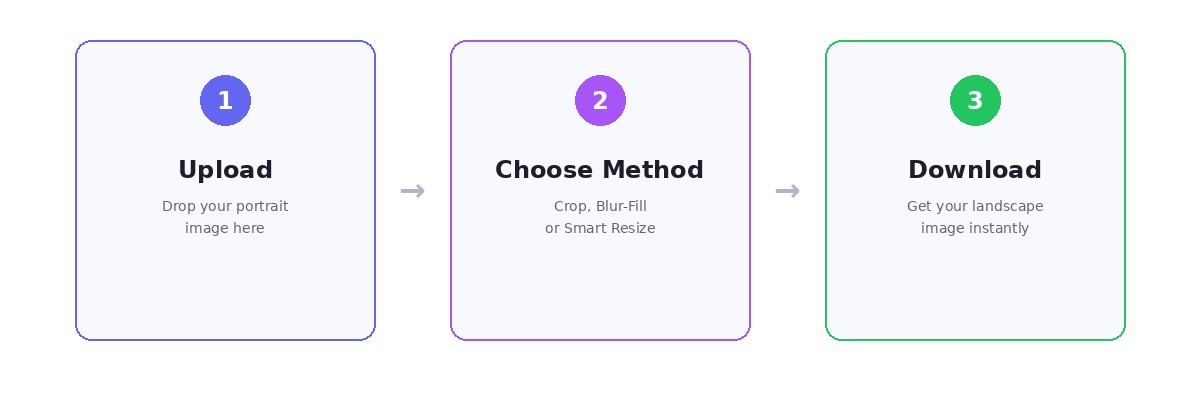
3 Ways to Convert a Portrait Image to Landscape
Choose the method that fits your image and destination platform.
Method 1: Crop to Landscape
Cropping removes the top and bottom portions of your portrait image to create a horizontal frame. This is the fastest method, but you lose image content.
Best for: Images where the key subject is centered and top/bottom areas are expendable.
Method 2: Blur-Fill (Pillarbox Effect)
This method places your full portrait image in the center of a landscape frame and fills side areas with a blurred version. It preserves the full original image.
Best for: Social posts and videos where preserving all original content matters.
Method 3: Smart Resize for Multiple Platforms
Smart resize adapts one image into multiple platform sizes in one pass, useful for social channels with different landscape dimensions.
Best for: Teams and creators who need multiple output sizes quickly.
Which Conversion Method Should You Use?
Answer a few questions and get a method recommendation.
Question 1 of 3
Do you need to keep the entire original image visible?
Full Method Comparison
| Method | Keeps Full Image | Natural-Looking | Speed | Cost |
|---|---|---|---|---|
Crop to Landscape | No — trims top/bottom | High | Instant | Free |
Blur-Fill (Pillarbox) | Yes — full image preserved | Moderate (blurred sides visible) | Instant | Free |
Smart Resize for Platforms | Depends on output ratio | High | Fast | Free |
Landscape Aspect Ratios for Every Platform
Choosing the right aspect ratio is critical. Here are the exact dimensions for the most common platforms.
| Platform | Use Case | Ratio | Pixels | |
|---|---|---|---|---|
| Feed Post (Landscape) | 1.91:1 | 1080 × 566 | ||
| Cover Photo | 2.63:1 | 820 × 312 | ||
| X (Twitter) | Header | 3:1 | 1500 × 500 | |
| Cover Image | 4:1 | 1584 × 396 | ||
| Pin (Landscape) | 2:3 | 1000 × 1500 |
Why Convert Portrait Images to Landscape?
Portrait photos are tall and narrow. Most digital displays, websites, and platforms are landscape-oriented. Converting lets you use your best shots everywhere.
Website Banners and Hero Images
Website headers and hero sections require wide, horizontal images. A portrait photo will leave awkward gaps or get stretched. Converting to landscape with an image landscape converter gives you a clean, full-width banner that fits responsive layouts.
YouTube Thumbnails and Video Covers
YouTube requires 16:9 thumbnails at 1280 x 720 pixels minimum. If your best frame is a vertical screenshot or photo, converting it to landscape ensures it displays correctly without black bars or cropping.
Desktop Wallpapers and Digital Frames
Computer monitors and digital photo frames are landscape-oriented. Converting portrait photos lets you use them as wallpapers or in digital frame slideshows without letterboxing.
Presentations and Business Reports
PowerPoint, Google Slides, and Keynote all use landscape slide layouts (16:9 or 4:3). Portrait images in presentations look out of place and waste screen space. Convert them to landscape for professional-looking slides.
E-commerce Product Listings
Marketplace platforms like Amazon, Etsy, and Shopify often favor landscape or square product images. Converting portrait product photos to landscape creates consistent, professional catalog layouts that improve click-through rates.
Tips for Better Portrait-to-Landscape Results
Start with the highest resolution source
Larger originals produce cleaner results after crop, blur-fill, and smart resize.
Choose the right method for your content
Use crop when framing is flexible, blur-fill when every pixel matters, and smart resize for multi-platform output.
Use blur-fill for centered portraits
Blur-fill keeps people fully visible and avoids aggressive edge cropping.
Preview before download
Check edges and composition, especially for very narrow target ratios.
Match aspect ratio to destination platform
Do not default to 16:9 for everything. Verify platform requirements first.
Save in the right format
Use PNG for graphics/text, JPEG for photos, and WebP for web delivery.
Frequently Asked Questions
From the Blog
Guides on image orientation, aspect ratios, and social media sizes.
Convert Portrait Photos for LinkedIn Banner
Turn any vertical photo into a LinkedIn banner (1584×396) — free, in-browser, full subject preserved.
Convert Portrait Photos to YouTube Thumbnail Size
Turn any vertical photo into a 1280×720 YouTube thumbnail — free, in-browser, no upload.
Social Media Image Sizes Cheat Sheet 2026
Every platform, every dimension — all in one place.
Ready to Convert Your Images?
Upload your portrait photos and convert them to landscape in seconds — free, no sign-up, works in your browser.
Open Converter Tool